
TUFC BRAND
GUIDELINES & ASSETS
BRAND GUIDELINES
BRAND GUIDELINES
Our brand guidelines must be carefully applied to preserve brand integrity across all assets.
These guidelines provide direction for colour palettes, program colourways, fonts, club logo use, and social media strategy.
TUFC LOGO
TUFC Logo
In 2025, after extensive consultation with members, there was overwhelming support for TUFC to explore a new logo.
Members were invited to submit concepts, with over 40 submissions received. A professional graphic designer was engaged to develop the final concept, approved by the Board.
In our 50th year (2026), the new logo respects our rich history while setting us up for our bright future.
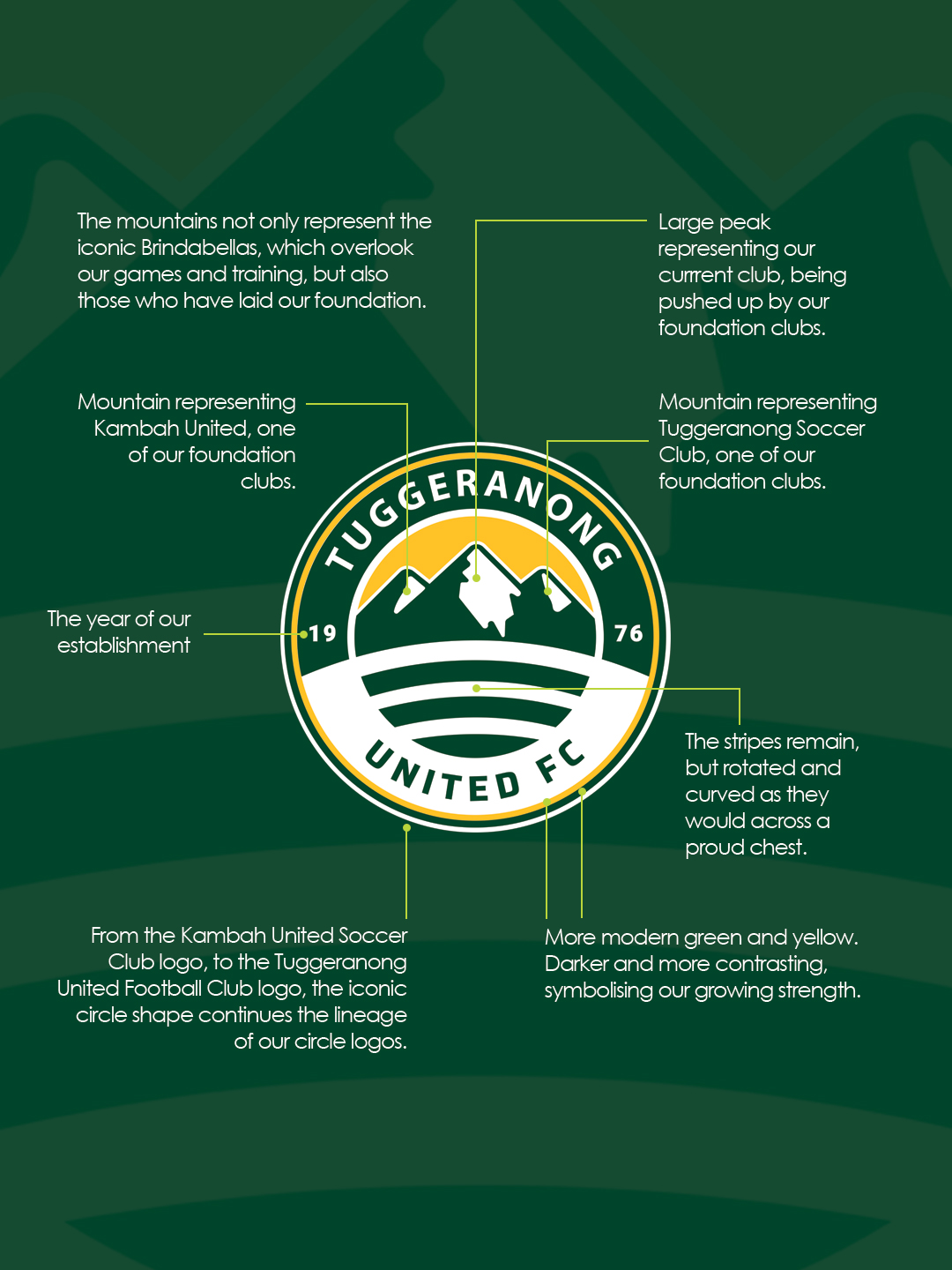
Please ensure you have familiarised yourself with acceptable logo use, found in the Brand Guidelines above.
Logo Variations
*To only be used in Golden Anniversary year, 2026
If you require a vector copy of the logo, please contact
TUFC Brand Guardian
The Brand Guardian is responsible for protecting and maintaining the integrity of Tuggeranong United’s visual and verbal identity across all touchpoints. This role ensures that the club’s logo, colours, fonts, and design elements are applied consistently across uniforms, signage, merchandise, digital channels, and all external communications. The Brand Guardian works collaboratively with teams, suppliers, and sponsors to uphold the TUFC brand and ensure that every representation of the club aligns with our values and brand standards.
Brand Guardian: Daniel Oyston, daniel@tufc.org.au
EMAIL SIGNATURE
EMAIL SIGNATURE
TUFC eMail Signature Block
All @tufc.org.au email addresses are required to to carry the TUFC email signature.
To create your signature, simply follow the steps below.
The assets you will need are:
-
- Logo – Download
- Green – #0d452c
- Yellow – #eaba37
- LinkedIn – use personal link
- FB – https://www.facebook.com/TuggiesFC
- IG – https://www.instagram.com/tuggeranongunited/

Steps
- Follow this link to Hubspot’s free generator – https://www.hubspot.com/email-signature-generator – and follow the instructions.
- Click the copy signature button and head to GMail settings (gear icon, top right, see all)
- Scroll to the signature section and create a new signature
- Before you paste the signature in, click in the empty box and hit enter twice – this will give you enough space for when to write an email
- Paste the copied signature into the field
- Set the drop-down boxes for FOR NEW EMAILS USE and select your signature
- Be sure to check the box “Insert signature before quoted text in replies
- Remove the “–” line that precedes it.”
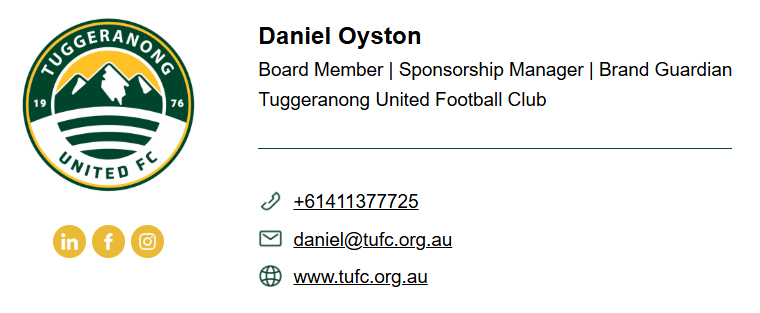
Your email signature should look like the example below.
POWERPOINT
POWERPOINT
TUFC PowerPoint Template
Please use this template for all TUFC presentations.